 Convoseal
How to export text messages from iPhone to PDF
Updated:
There is no built-in option to export or print text messages from an iPhone. You can work around it with screenshots, copy and paste, or a Mac. Or you can record your screen and let Convoseal build the PDF on your iPhone.
Free workarounds
- ScreenshotsPress the side button and the volume up button together on a recent iPhone. Capture the screen, scroll, repeat. Swipe left on the conversation first if you want timestamps to be visible.
- Copy and pasteTouch and hold a message, tap Copy, and paste it into Notes or Pages. You can select several messages one by one, but it is slow, and you lose bubbles and images.
- From a MacIf you use Messages on a Mac, File > Print may let you choose Save as PDF, depending on your macOS version. It is worth checking on your own system.
What these methods cannot do
- Screenshots are fine for a short exchange. For months of messages, you end up with hundreds of images in no particular order.
- Copied text has no sender, no dates and no layout unless you add them yourself.
- The Mac route only works if your messages sync to that Mac, and deleted messages are not recovered.
- Backups from iCloud or Finder are not directly readable. Paid third-party tools exist; we do not cover them here.
With Convoseal: record, review, export
- Select iMessage or SMSOpen Convoseal and choose the messaging source.
- Scroll while recordingOpen the conversation and record your screen as you scroll slowly. Keep message times visible if they matter to you.
- Wait for the analysisThe app reads the recording on your iPhone with Apple's text recognition. Keep Convoseal open.
- Confirm the sidesChoose which side is you, then check the messages flagged as uncertain. Recognition can be wrong, so a quick review is part of the process.
- ExportPreview page 1 for free, then export a PDF with numbered, dated messages, your original images as an appendix, and a summary page listing a SHA-256 fingerprint for each file. CSV, TXT and HTML are included.
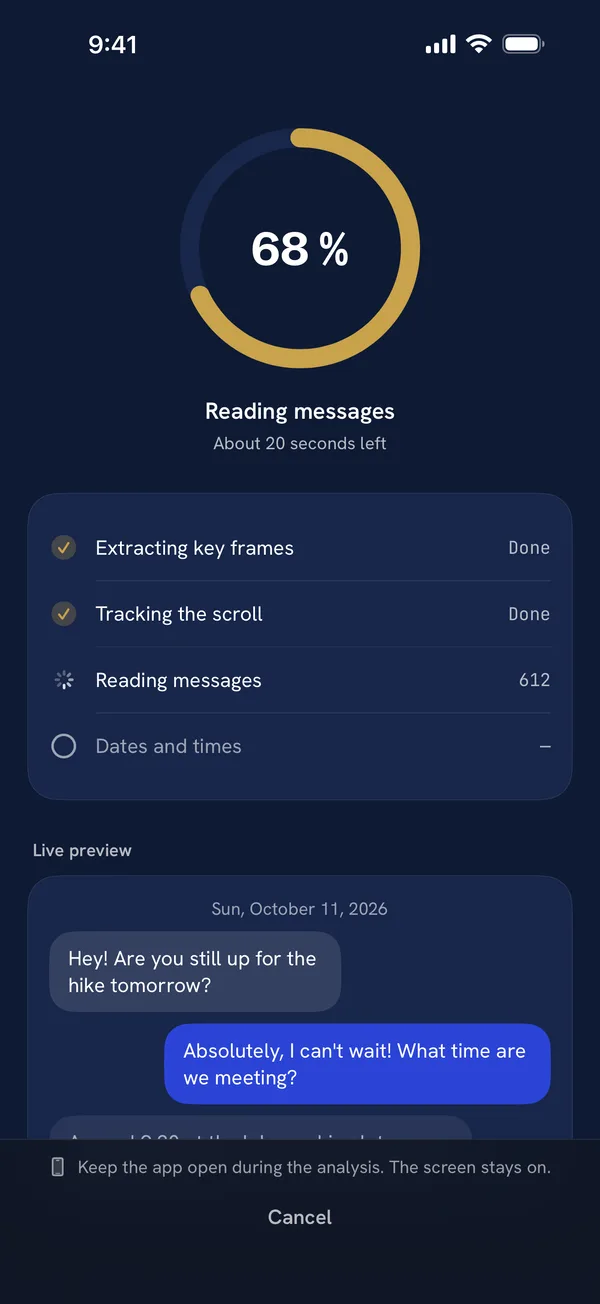
Convoseal works from the screen, so it only sees what you show it. Messages you deleted before recording will not appear. The SHA-256 fingerprint shows that a file is unchanged since creation; it does not show that the conversation itself is genuine. Your originals are kept unless you confirm otherwise.
The page 1 preview is free. Learn more on the home page. Using iMessage specifically? See how to save an iMessage conversation.
FAQ
Can I print texts straight from the Messages app?
Not on iPhone, at the time of writing. There is no print or export command in Messages.
Will the PDF show dates and times?
Convoseal dates each message when the date appears on screen. Make sure timestamps are visible while you record.
Is the conversation sent to a server?
No. Everything is processed on your iPhone or iPad, with no account and no tracking.
Try it on your own conversation
Preview page 1 of your PDF for free. Everything is processed on your iPhone or iPad: no account, nothing uploaded.
Other guides
WhatsApp, Telegram, Signal, Messenger, Instagram, iMessage and Apple are trademarks of their respective owners; Convoseal is not affiliated with them. Convoseal does not give legal advice.