 Convoseal
How to screenshot a long conversation on iPhone (screen recording alternative)
Updated:
You usually cannot take a single, long screenshot of a conversation on iPhone. The full-page option in iOS mostly applies to Safari and some documents, not to messaging apps. You can capture in pieces, or record the screen while you scroll and keep that video.
Method 1: several screenshots
- CapturePress the side button and volume up button together on a recent iPhone.
- Scroll by one screen, less a littleAlways keep one or two messages in common with the previous image, so nothing is missed.
- RepeatContinue to the end, then check that the series has no gaps and that dates and names are visible.
Method 2: record the screen
- Add the controlIn Settings > Control Center, add Screen Recording if it is not already there.
- StartOpen Control Center and tap the record button. After the countdown, return to your conversation.
- Scroll slowlySmall gestures, with pauses. Fast flicks blur the text.
- StopOpen Control Center again and tap the button. The video lands in Photos.
The trouble with both
With screenshots, a long chat means dozens or hundreds of images, hard to sort and share. With a video, you have one file, but nobody wants to scrub through an hour of footage to find a message. Neither gives you numbered pages, or text you can search. If you share a video, the recipient also has to watch it from start to finish, which is not how anyone wants to read a conversation. A document with page numbers and dates is far easier to follow.
Let Convoseal turn the recording into a document
- Choose the appOpen Convoseal and select the messaging app your chat comes from.
- Record from Convoseal or importLong-press the record button in Control Center and choose Convoseal, or add screenshots or a video you already have.
- Analysis on the iPhoneText recognition from Apple reads the frames and drops duplicates. Keep the app open.
- ReviewSay which side is you and look at the few uncertain messages. The recognition can be wrong; the check is yours.
- ExportFree preview of page 1, then a PDF with numbered, dated messages, your images as an appendix, and a page listing each file's SHA-256 fingerprint. Also CSV, TXT and HTML.
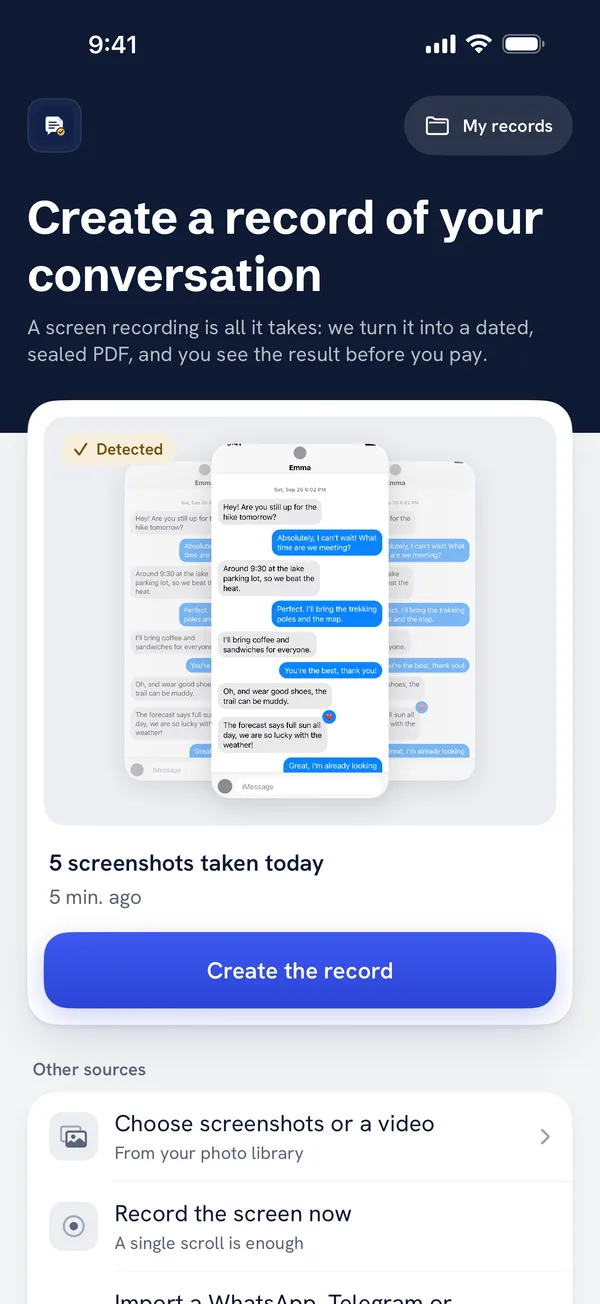
Your original screenshots and videos stay in Photos; Convoseal does not remove them without your confirmation. The fingerprint shows that a file is unchanged since its creation, not that the original conversation is authentic.
The page 1 preview is free. Visit the home page. For a WhatsApp-specific route, see exporting WhatsApp to PDF.
FAQ
Is there a scrolling screenshot in Messages?
At the time of writing, no. The full-page option is mostly available in Safari and some documents.
How slowly should I scroll?
Slowly enough that each message is readable in the video. If you can read it when paused, so can text recognition.
Will a long recording use a lot of space?
A few minutes of recording is usually modest, but it depends on the length. Check your free storage before a long chat.
Try it on your own conversation
Preview page 1 of your PDF for free. Everything is processed on your iPhone or iPad: no account, nothing uploaded.
Other guides
WhatsApp, Telegram, Signal, Messenger, Instagram, iMessage and Apple are trademarks of their respective owners; Convoseal is not affiliated with them. Convoseal does not give legal advice.