 Convoseal
How to export a Telegram chat from iPhone
Updated:
The Telegram app for iPhone does not offer a chat export. Telegram Desktop, on a computer, does. If you have no computer, you can record your screen. Either way, Convoseal can turn the result into a clean PDF on your iPhone.
Free route: Telegram Desktop
- Install Telegram DesktopIt exists for Windows, macOS and Linux. Sign in with the same account.
- Export one chatOpen the conversation, click the three-dot menu and choose Export chat history. To export everything, use Settings > Advanced > Export Telegram data. Menu names can change between versions.
- Pick the formatHTML is easy to read in a browser. JSON is machine-readable. Choose JSON if you plan to use Convoseal.
- Move the file to your iPhoneUse AirDrop or iCloud Drive, then open it in the Files app.
The catch
You need a computer with Telegram Desktop installed and signed in. An HTML export is readable but is not a tidy document, and a JSON file is not meant for human eyes. Like any file, either can be edited after export, so neither shows by itself that the content is unchanged. Secret chats are not covered by the standard export. Large groups with many photos and videos can also produce a heavy export, so leave plenty of free space on the computer and be patient while it runs.
With Convoseal, two ways in
- If you have the JSON fileIn the Files app, share the Telegram Desktop JSON export with Convoseal. The messages are imported as they are, without needing text recognition.
- If you have no computerOpen Convoseal, choose Telegram, and record your screen while scrolling through the chat slowly.
- AnalysisFor a recording, text recognition runs on your iPhone, using Apple's own technology and no server. Keep the app open until the progress bar ends.
- Check the sidesSay which side is you, then review any uncertain messages. Recognition from a video can make errors.
- ExportFree page 1 preview. Then a PDF with numbered, dated messages, your original images as an appendix and a page with each file's SHA-256 fingerprint. CSV, TXT and HTML too.
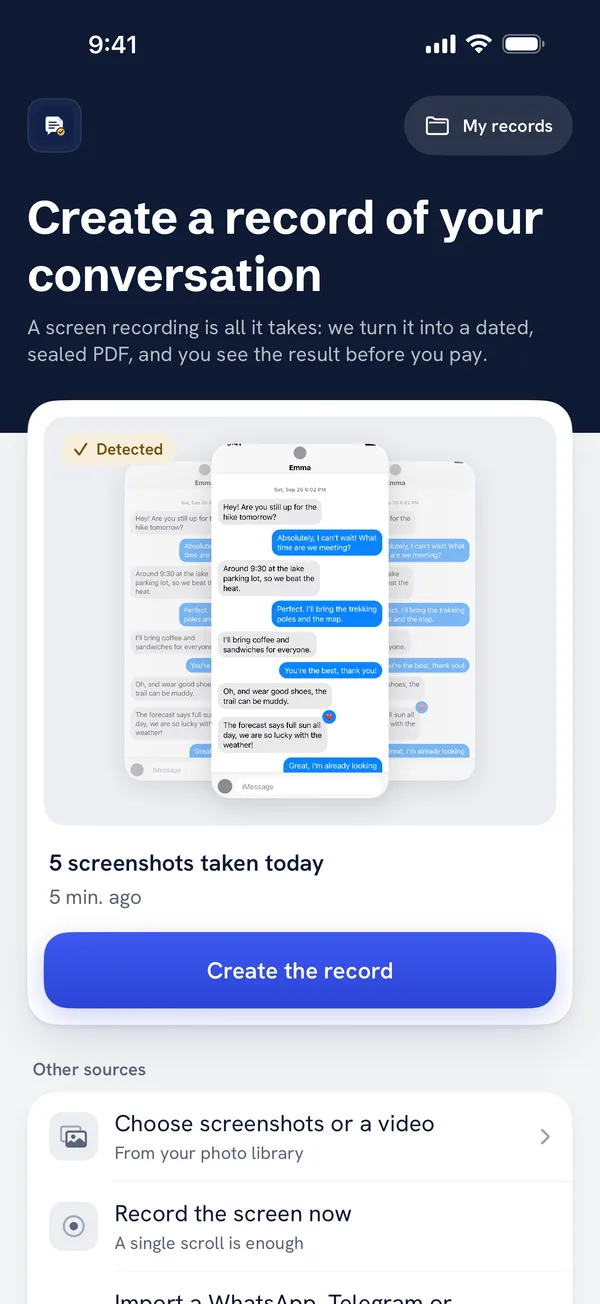
The fingerprint tells you that a file is unchanged since Convoseal created it. It does not authenticate the original Telegram conversation. Your imported files and recordings stay in place unless you choose to remove them. Convoseal reads what the file or the screen contains; it does not log in to Telegram.
The page 1 preview is free. Discover Convoseal. Same situation with another app? Read the Signal, Messenger and Instagram guide.
FAQ
Can I export from Telegram on iPhone itself?
At the time of writing, no. Use Telegram Desktop or a screen recording.
Which format does Convoseal accept from Telegram?
The JSON export from Telegram Desktop, shared from the Files app. Screen recordings and screenshots also work.
Are my messages uploaded anywhere?
No. Processing stays on your iPhone, with no account.
Try it on your own conversation
Preview page 1 of your PDF for free. Everything is processed on your iPhone or iPad: no account, nothing uploaded.
Other guides
WhatsApp, Telegram, Signal, Messenger, Instagram, iMessage and Apple are trademarks of their respective owners; Convoseal is not affiliated with them. Convoseal does not give legal advice.